• 07-08-2014, 13:04:54
    #1
    Wp yazı linkerinin başına ikon ekleme
    Merhaba arkadaşlar yazı linklerinin başlarına belirleyeceğim ikonu eklemek istiyorum.
    Örnek:

    Böyle bir eklenti bilen varsa memnun olurum.
  • 07-08-2014, 14:38:19
    #2
    ugrboz adlı üyeden alıntı: mesajı görüntüle
    Wp yazı linkerinin başına ikon ekleme
    Merhaba arkadaşlar yazı linklerinin başlarına belirleyeceğim ikonu eklemek istiyorum.
    Örnek:

    Böyle bir eklenti bilen varsa memnun olurum.
    Bu eklenti ile değil kodlama ile yapılabilir. single.php dosyasında başlık kısmın olduğu yere ne şekilde resim ekliyorsanız (öne çıkarılmış görsel,özel alan vs) onun kodlarını eklemeniz gerekli.Kod bilginiz yoksa pmden yardımcı olurum.
  • 07-08-2014, 15:38:04
    #3
    Öncelikle tema klasörünüzün altında js klasöründe admin.js diye bir dosya oluşturun;

    benim örneğimde wp-content/themes/twentyfourteen/js/admin.js şeklinde
    var file_frame;
     
    jQuery('#yazi-ikon-yukle').live('click', function( event ){
    
    	event.preventDefault();
    
    	// If the media frame already exists, reopen it.
    	if ( file_frame ) {
    	  file_frame.open();
    	  return;
    	}
    
    	// Create the media frame.
    	file_frame = wp.media.frames.file_frame = wp.media({
    	  title: 'Yazı ikon yükle',
    	  button: {
    	    text: 'İkon Seç',
    	  },
    	  multiple: false  // Set to true to allow multiple files to be selected
    	});
    
    	// When an image is selected, run a callback.
    	file_frame.on( 'select', function() {
    	  // We set multiple to false so only get one image from the uploader
    	  attachment = file_frame.state().get('selection').first().toJSON();
    
    	  // Do something with attachment.id and/or attachment.url here
    	  jQuery('#yazi-ikon').val(attachment.url);
    	});
    
    	// Finally, open the modal
    	file_frame.open();
    });
    içine yukarıdaki kodları yapıştırın. daha sonra functions.php'nin en altına şu kodları ekleyin;

    add_action('admin_head', function(){
    	$url = get_template_directory_uri() . '/js/admin.js';
    	echo "<script type='text/javascript' src='$url'></script>";
    });
    
    add_action('add_meta_boxes', function(){
    	add_meta_box('yazi-ikon-mb', 'Yazı ikonu', 'yazi_ikon_cb', 'post');
    });
    
    
    function yazi_ikon_cb( $post ) {
    	wp_nonce_field('myplugin_meta_box', 'myplugin_meta_box_nonce');
    	$value = get_post_meta( $post->ID, 'yazi_ikon', true );
    
    	echo '<label style="display:block" for="yazi-ikon">Yazı ikonu</label>';
    	if(trim($value))
    		echo "<img src='". esc_attr( $value ) ."' style='display:block;' />";
    	echo '<input style="width:70%" type="text" id="yazi-ikon" name="yazi-ikon" value="' . esc_attr( $value ) . '" size="25" />';
    	echo '<input style="margin-left:10px" class="button button-primary button-large" type="button" id="yazi-ikon-yukle" value="Yazı ikonu yükle" />';
    }
    
    add_action('save_post', function( $post_id ) {
    
    	/*
    	 * We need to verify this came from our screen and with proper authorization,
    	 * because the save_post action can be triggered at other times.
    	 */
    
    	// Check if our nonce is set.
    	if ( ! isset( $_POST['myplugin_meta_box_nonce'] ) ) {
    		return;
    	}
    
    	// Verify that the nonce is valid.
    	if ( ! wp_verify_nonce( $_POST['myplugin_meta_box_nonce'], 'myplugin_meta_box' ) ) {
    		return;
    	}
    
    	// If this is an autosave, our form has not been submitted, so we don't want to do anything.
    	if ( defined( 'DOING_AUTOSAVE' ) && DOING_AUTOSAVE ) {
    		return;
    	}
    
    	// Check the user's permissions.
    	if ( isset( $_POST['post_type'] ) && 'page' == $_POST['post_type'] ) {
    
    		if ( ! current_user_can( 'edit_page', $post_id ) ) {
    			return;
    		}
    
    	} else {
    
    		if ( ! current_user_can( 'edit_post', $post_id ) ) {
    			return;
    		}
    	}
    
    	/* OK, it's safe for us to save the data now. */
    	
    	// Make sure that it is set.
    	if ( ! isset( $_POST['yazi-ikon'] ) ) {
    		return;
    	}
    
    	// Sanitize user input.
    	$my_data = sanitize_text_field( $_POST['yazi-ikon'] );
    
    	// Update the meta field in the database.
    	update_post_meta( $post_id, 'yazi_ikon', $my_data );
    });
    daha sonra admin panelinden post düzenleme yada yeni post oluşturma sayfasına girdiğinizde yeni bir kutu gelmiş olucak;
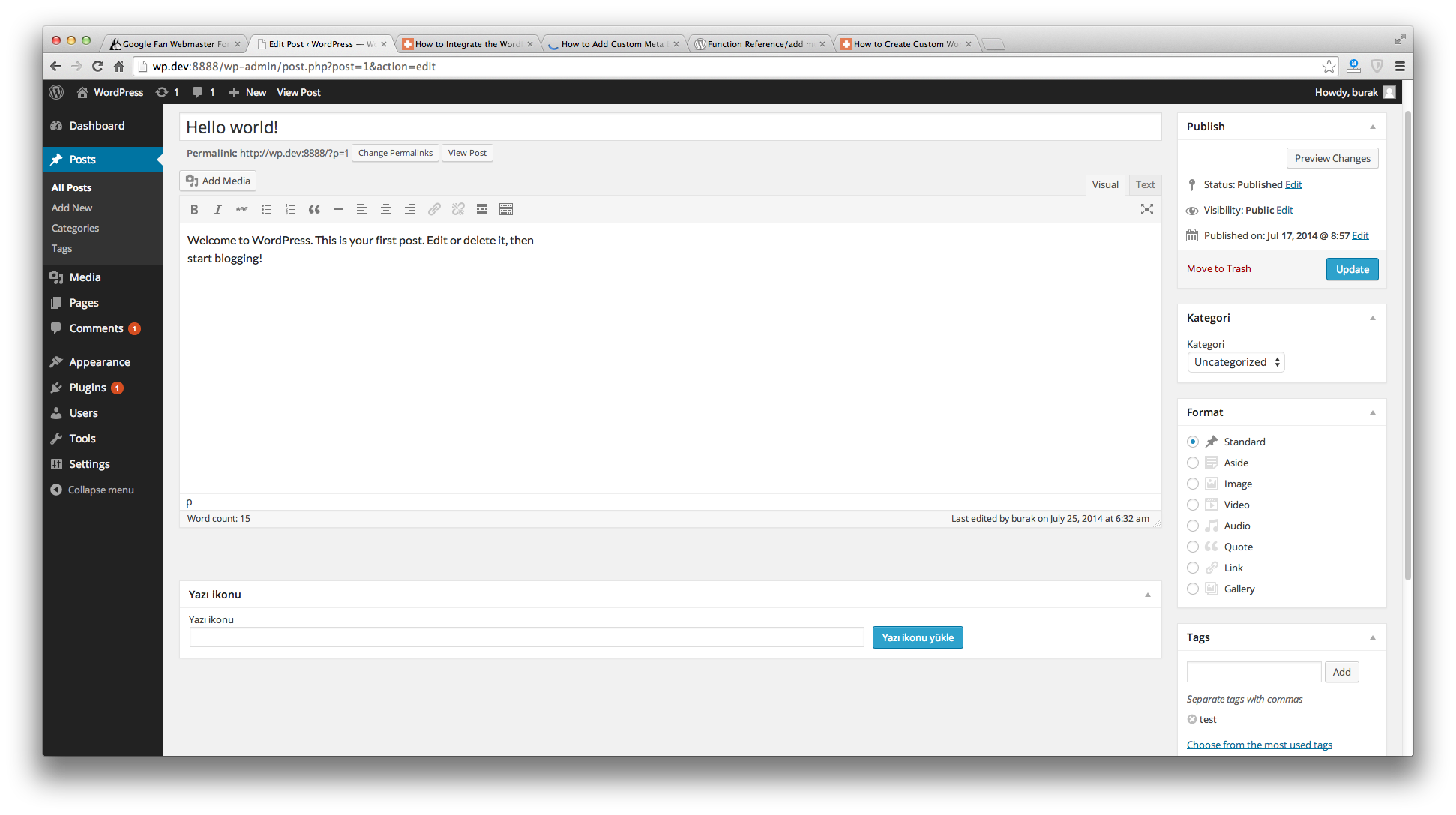
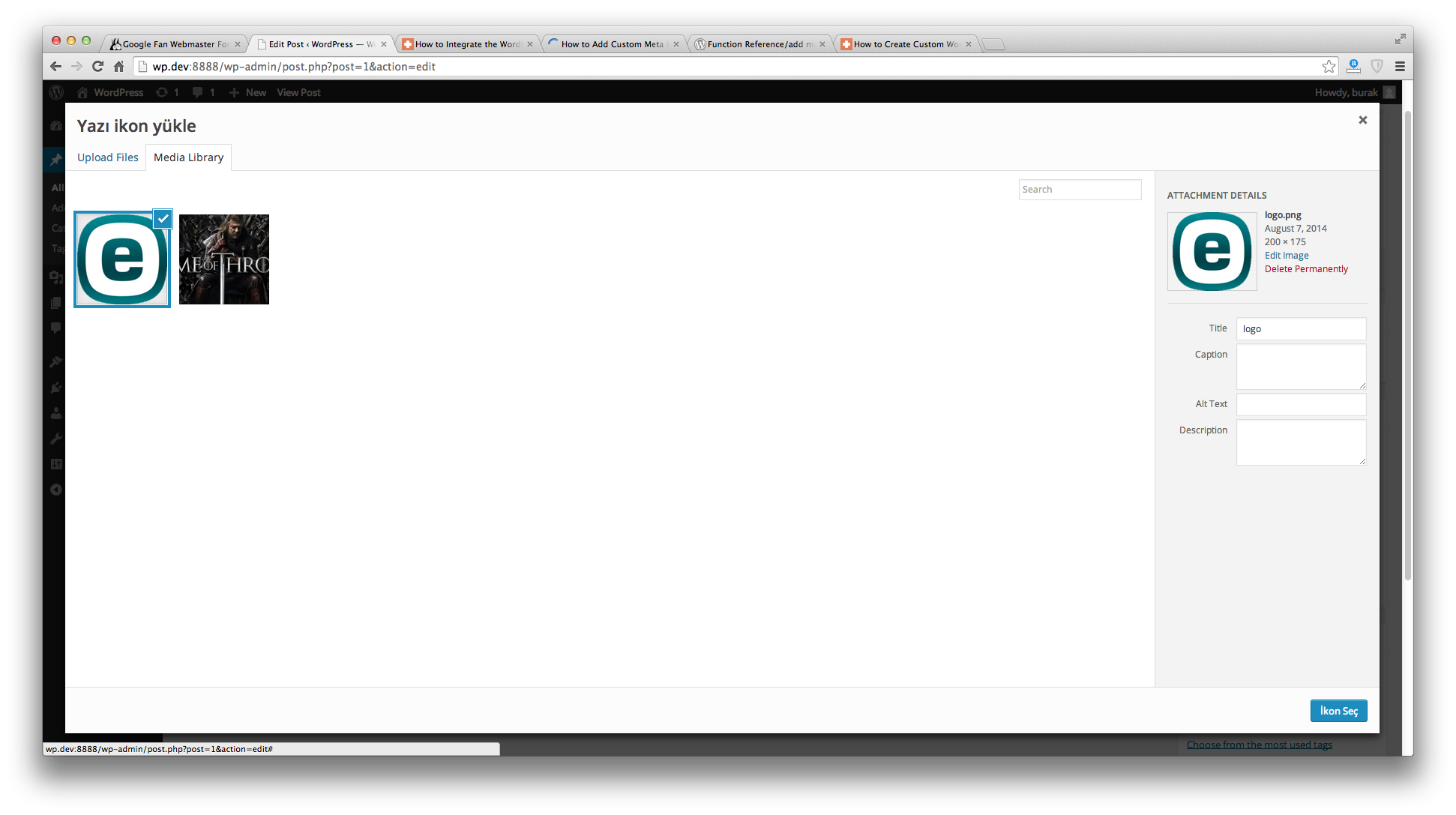

    Yazı ikonu yükle butonuna basıp açılan pencereden istediğinizi ikon yükleyip yada yüklenmiş resimlerden seçip İkon Seç'e basın;


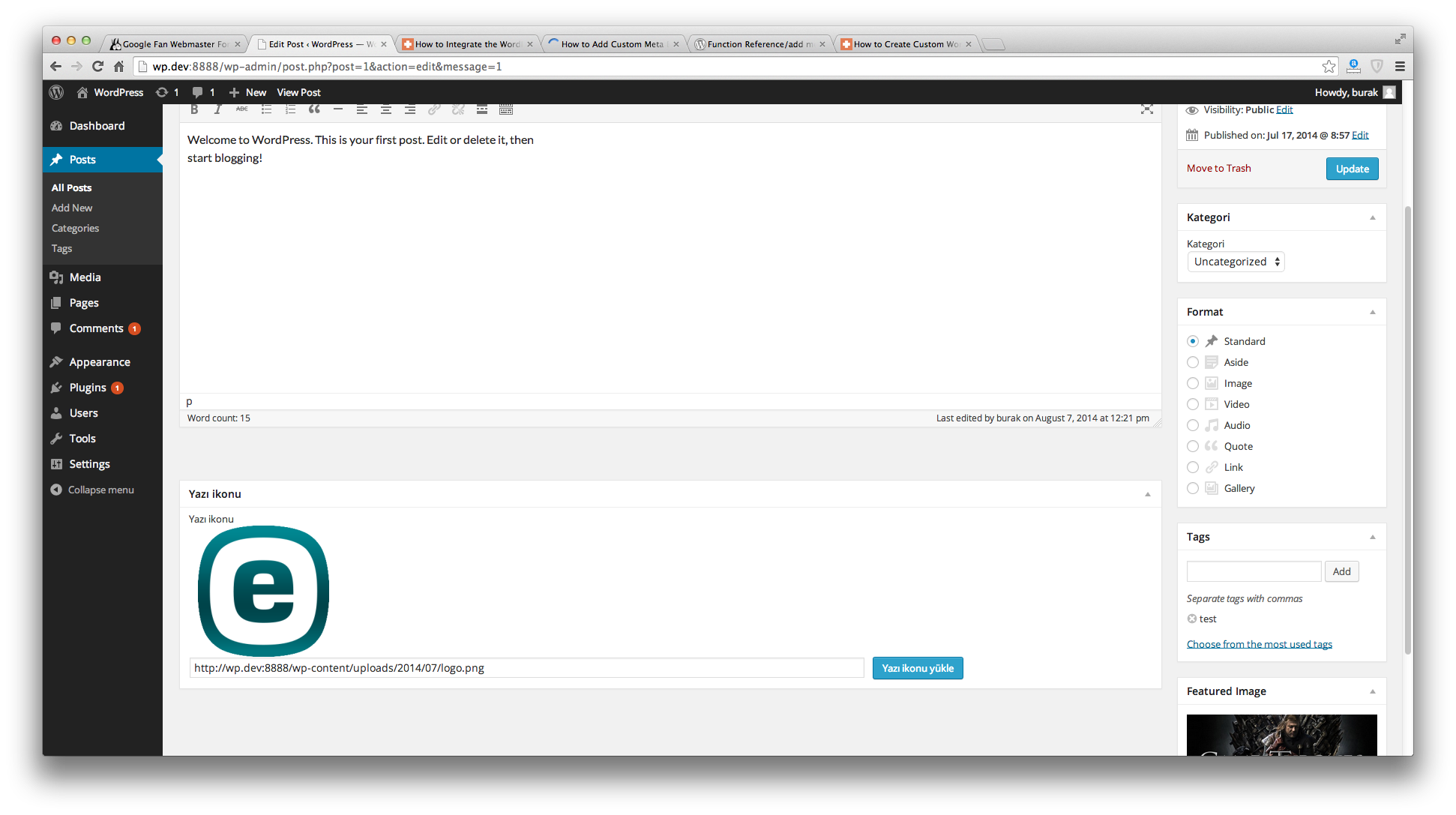
    daha sonra postu kaydettiğinizde, şu şekilde kaydedilmiş olucak;


    daha sonra ikonu göstermek istediğiniz yere şöyle bir kod parçacığı eklemeniz gerekmekte;

    $ikon = get_post_meta( $post->ID, 'yazi_ikon', true );
    				if($ikon)
    					echo "<img src='{$ikon}' width='50' height='43'/>";
    istediğiniz şekilde özelleştirebilirsiniz, örneğin ben boyutunu 50x43 şeklinde ayarladım.

    Örnek olarak WordPress'in kendi temalarından twentyfourteen'e eklemek için;

    wp-content/themes/twentyfourteen/content.php 'de 24. satırdan sonra yukarıdaki kod parçacığını ekleyin ve wp-content/themes/twentyfourteen/style.css'in sonuna şu css kodlarını ekleyin;

    .single-post .entry-title {
    	display: inline;
    	vertical-align: middle;
    }
    
    .single-post .entry-header {
    	vertical-align: middle;
    }
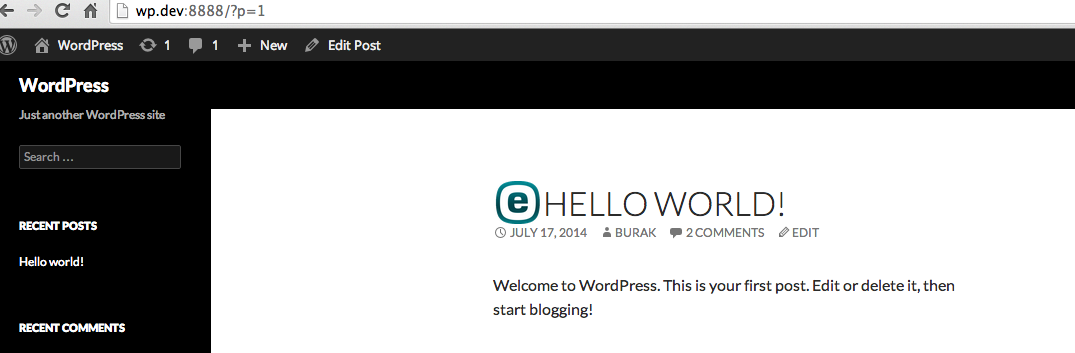
    Yazının içine girdiğinizde ikon şu şekilde görüncektir;
  • 07-08-2014, 20:19:44
    #4
    jebias adlı üyeden alıntı: mesajı görüntüle
    Öncelikle tema klasörünüzün altında js klasöründe admin.js diye bir dosya oluşturun;

    benim örneğimde wp-content/themes/twentyfourteen/js/admin.js şeklinde
    var file_frame;
     
    jQuery('#yazi-ikon-yukle').live('click', function( event ){
    
    	event.preventDefault();
    
    	// If the media frame already exists, reopen it.
    	if ( file_frame ) {
    	  file_frame.open();
    	  return;
    	}
    
    	// Create the media frame.
    	file_frame = wp.media.frames.file_frame = wp.media({
    	  title: 'Yazı ikon yükle',
    	  button: {
    	    text: 'İkon Seç',
    	  },
    	  multiple: false  // Set to true to allow multiple files to be selected
    	});
    
    	// When an image is selected, run a callback.
    	file_frame.on( 'select', function() {
    	  // We set multiple to false so only get one image from the uploader
    	  attachment = file_frame.state().get('selection').first().toJSON();
    
    	  // Do something with attachment.id and/or attachment.url here
    	  jQuery('#yazi-ikon').val(attachment.url);
    	});
    
    	// Finally, open the modal
    	file_frame.open();
    });
    içine yukarıdaki kodları yapıştırın. daha sonra functions.php'nin en altına şu kodları ekleyin;

    add_action('admin_head', function(){
    	$url = get_template_directory_uri() . '/js/admin.js';
    	echo "<script type='text/javascript' src='$url'></script>";
    });
    
    add_action('add_meta_boxes', function(){
    	add_meta_box('yazi-ikon-mb', 'Yazı ikonu', 'yazi_ikon_cb', 'post');
    });
    
    
    function yazi_ikon_cb( $post ) {
    	wp_nonce_field('myplugin_meta_box', 'myplugin_meta_box_nonce');
    	$value = get_post_meta( $post->ID, 'yazi_ikon', true );
    
    	echo '<label style="display:block" for="yazi-ikon">Yazı ikonu</label>';
    	if(trim($value))
    		echo "<img src='". esc_attr( $value ) ."' style='display:block;' />";
    	echo '<input style="width:70%" type="text" id="yazi-ikon" name="yazi-ikon" value="' . esc_attr( $value ) . '" size="25" />';
    	echo '<input style="margin-left:10px" class="button button-primary button-large" type="button" id="yazi-ikon-yukle" value="Yazı ikonu yükle" />';
    }
    
    add_action('save_post', function( $post_id ) {
    
    	/*
    	 * We need to verify this came from our screen and with proper authorization,
    	 * because the save_post action can be triggered at other times.
    	 */
    
    	// Check if our nonce is set.
    	if ( ! isset( $_POST['myplugin_meta_box_nonce'] ) ) {
    		return;
    	}
    
    	// Verify that the nonce is valid.
    	if ( ! wp_verify_nonce( $_POST['myplugin_meta_box_nonce'], 'myplugin_meta_box' ) ) {
    		return;
    	}
    
    	// If this is an autosave, our form has not been submitted, so we don't want to do anything.
    	if ( defined( 'DOING_AUTOSAVE' ) && DOING_AUTOSAVE ) {
    		return;
    	}
    
    	// Check the user's permissions.
    	if ( isset( $_POST['post_type'] ) && 'page' == $_POST['post_type'] ) {
    
    		if ( ! current_user_can( 'edit_page', $post_id ) ) {
    			return;
    		}
    
    	} else {
    
    		if ( ! current_user_can( 'edit_post', $post_id ) ) {
    			return;
    		}
    	}
    
    	/* OK, it's safe for us to save the data now. */
    	
    	// Make sure that it is set.
    	if ( ! isset( $_POST['yazi-ikon'] ) ) {
    		return;
    	}
    
    	// Sanitize user input.
    	$my_data = sanitize_text_field( $_POST['yazi-ikon'] );
    
    	// Update the meta field in the database.
    	update_post_meta( $post_id, 'yazi_ikon', $my_data );
    });
    daha sonra admin panelinden post düzenleme yada yeni post oluşturma sayfasına girdiğinizde yeni bir kutu gelmiş olucak;


    Yazı ikonu yükle butonuna basıp açılan pencereden istediğinizi ikon yükleyip yada yüklenmiş resimlerden seçip İkon Seç'e basın;


    daha sonra postu kaydettiğinizde, şu şekilde kaydedilmiş olucak;


    daha sonra ikonu göstermek istediğiniz yere şöyle bir kod parçacığı eklemeniz gerekmekte;

    $ikon = get_post_meta( $post->ID, 'yazi_ikon', true );
    				if($ikon)
    					echo "<img src='{$ikon}' width='50' height='43'/>";
    istediğiniz şekilde özelleştirebilirsiniz, örneğin ben boyutunu 50x43 şeklinde ayarladım.

    Örnek olarak WordPress'in kendi temalarından twentyfourteen'e eklemek için;

    wp-content/themes/twentyfourteen/content.php 'de 24. satırdan sonra yukarıdaki kod parçacığını ekleyin ve wp-content/themes/twentyfourteen/style.css'in sonuna şu css kodlarını ekleyin;

    .single-post .entry-title {
    	display: inline;
    	vertical-align: middle;
    }
    
    .single-post .entry-header {
    	vertical-align: middle;
    }
    Yazının içine girdiğinizde ikon şu şekilde görüncektir;

    Çok güzel anlatım olmuş tebrikler. Hiç alakam yok ama bu anlatımdan sonra yapasım geldi sanki
  • 07-08-2014, 21:45:58
    #5
    bluefb adlı üyeden alıntı: mesajı görüntüle
    Bu eklenti ile değil kodlama ile yapılabilir. single.php dosyasında başlık kısmın olduğu yere ne şekilde resim ekliyorsanız (öne çıkarılmış görsel,özel alan vs) onun kodlarını eklemeniz gerekli.Kod bilginiz yoksa pmden yardımcı olurum.
    Sağolsun bluefb yardımcı oldu.

    jebias adlı üyeden alıntı: mesajı görüntüle
    Öncelikle tema klasörünüzün altında js klasöründe admin.js diye bir dosya oluşturun;

    benim örneğimde wp-content/themes/twentyfourteen/js/admin.js şeklinde
    var file_frame; jQuery('#yazi-ikon-yukle').live('click', function( event ){ event.preventDefault(); // If the media frame already exists, reopen it. if ( file_frame ) { file_frame.open(); return; } // Create the media frame. file_frame = wp.media.frames.file_frame = wp.media({ title: 'Yazı ikon yükle', button: { text: 'İkon Seç', }, multiple: false // Set to true to allow multiple files to be selected }); // When an image is selected, run a callback. file_frame.on( 'select', function() { // We set multiple to false so only get one image from the uploader attachment = file_frame.state().get('selection').first().toJSON (); // Do something with attachment.id and/or attachment.url here jQuery('#yazi-ikon').val(attachment.url); }); // Finally, open the modal file_frame.open(); });
    içine yukarıdaki kodları yapıştırın. daha sonra functions.php'nin en altına şu kodları ekleyin;

    add_action('admin_head', function(){ $url = get_template_directory_uri() . '/js/admin.js'; echo "<script type='text/javascript' src='$url'></script>"; }); add_action('add_meta_boxes', function(){ add_meta_box('yazi-ikon-mb', 'Yazı ikonu', 'yazi_ikon_cb', 'post'); }); function yazi_ikon_cb( $post ) { wp_nonce_field('myplugin_meta_box', 'myplugin_meta_box_nonce'); $value = get_post_meta( $post->ID, 'yazi_ikon', true ); echo '<label style="display:block" for="yazi-ikon">Yazı ikonu</label>'; if(trim($value)) echo "<img src='". esc_attr( $value ) ."' style='display:block;' />"; echo '<input style="width:70%" type="text" id="yazi-ikon" name="yazi-ikon" value="' . esc_attr( $value ) . '" size="25" />'; echo '<input style="margin-left:10px" class="button button-primary button-large" type="button" id="yazi-ikon-yukle" value="Yazı ikonu yükle" />'; } add_action('save_post', function( $post_id ) { /* * We need to verify this came from our screen and with proper authorization, * because the save_post action can be triggered at other times. */ // Check if our nonce is set. if ( ! isset( $_POST['myplugin_meta_box_nonce'] ) ) { return; } // Verify that the nonce is valid. if ( ! wp_verify_nonce( $_POST['myplugin_meta_box_nonce'], 'myplugin_meta_box' ) ) { return; } // If this is an autosave, our form has not been submitted, so we don't want to do anything. if ( defined( 'DOING_AUTOSAVE' ) && DOING_AUTOSAVE ) { return; } // Check the user's permissions. if ( isset( $_POST['post_type'] ) && 'page' == $_POST['post_type'] ) { if ( ! current_user_can( 'edit_page', $post_id ) ) { return; } } else { if ( ! current_user_can( 'edit_post', $post_id ) ) { return; } } /* OK, it's safe for us to save the data now. */ // Make sure that it is set. if ( ! isset( $_POST['yazi-ikon'] ) ) { return; } // Sanitize user input. $my_data = sanitize_text_field( $_POST['yazi-ikon'] ); // Update the meta field in the database. update_post_meta( $post_id, 'yazi_ikon', $my_data ); });
    daha sonra admin panelinden post düzenleme yada yeni post oluşturma sayfasına girdiğinizde yeni bir kutu gelmiş olucak;


    Yazı ikonu yükle butonuna basıp açılan pencereden istediğinizi ikon yükleyip yada yüklenmiş resimlerden seçip İkon Seç'e basın;


    daha sonra postu kaydettiğinizde, şu şekilde kaydedilmiş olucak;


    daha sonra ikonu göstermek istediğiniz yere şöyle bir kod parçacığı eklemeniz gerekmekte;

    $ikon = get_post_meta( $post->ID, 'yazi_ikon', true ); if($ikon) echo "<img src='{$ikon}' width='50' height='43'/>";
    istediğiniz şekilde özelleştirebilirsiniz, örneğin ben boyutunu 50x43 şeklinde ayarladım.

    Örnek olarak WordPress'in kendi temalarından twentyfourteen'e eklemek için;

    wp-content/themes/twentyfourteen/content.php 'de 24. satırdan sonra yukarıdaki kod parçacığını ekleyin ve wp-content/themes/twentyfourteen/style.css'in sonuna şu css kodlarını ekleyin;

    .single-post .entry-title { display: inline; vertical-align: middle; } .single-post .entry-header { vertical-align: middle; }
    Yazının içine girdiğinizde ikon şu şekilde görüncektir;
    Jaebias üstat sizin anlatımı twenty ten temasında uyguladım tüm adımlar sorunsuz oldu fakat şu content.php bu temada yok.
  • 08-08-2014, 10:10:10
    #6
    ugrboz adlı üyeden alıntı: mesajı görüntüle
    Sağolsun bluefb yardımcı oldu.


    Jaebias üstat sizin anlatımı twenty ten temasında uyguladım tüm adımlar sorunsuz oldu fakat şu content.php bu temada yok.

    TwentyTen teması için;

    loop-single.php'de 26. satır şu şekildedir;
    <h1 class="entry-title"><?php the_title(); ?></h1>
    onu böyle değiştirin;
    <?php $ikon = get_post_meta( $post->ID, 'yazi_ikon', true ); if($ikon) echo "<img class='entry-icon' src='{$ikon}' width='50' height='43'/>"; ?> <h1 class="entry-title"><?php the_title(); ?></h1>
    ve style.css dosyanıza şu kodları ekleyin;

    .single-post .entry-title {
    	display: inline;
    	vertical-align: middle;
    }
    
    .entry-icon {
    	vertical-align: middle;
    }
  • 08-08-2014, 10:21:51
    #7
    jebias adlı üyeden alıntı: mesajı görüntüle
    TwentyTen teması için;

    loop-single.php'de 26. satır şu şekildedir;
    <h1 class="entry-title"><?php the_title(); ?></h1>
    onu böyle değiştirin;
    <?php $ikon = get_post_meta( $post->ID, 'yazi_ikon', true ); if($ikon) echo "<img class='entry-icon' src='{$ikon}' width='50' height='43'/>"; ?> <h1 class="entry-title"><?php the_title(); ?></h1>
    ve style.css dosyanıza şu kodları ekleyin;

    .single-post .entry-title { display: inline; vertical-align: middle; } .entry-icon { vertical-align: middle; }
    Tamamen sorunsuz çalışıyor.
    İlgi ve alakanız ve zaman ayırdığınız için teşekkürler.